
If you using a laptop or PC for work or personal use, the user with which you normally login should not have Administrator rights. In other words, your user account should not be able to install or update any software on your machine. Why?
Well all anti-virus and anti-malware programs you have installed on your machine work off fingerprints, and sometimes, behaviors of these viruses and malware. So if I download a file which has a fingerprint of a virus, my antivirus program will either block it or warn me. But there's a thing called zero day vulnerabilities. These are security holes in the software installed on your laptop that only the bad guys know about. Your antivirus program may not be able to protect you from these. So if you download or receive a Word doc or a PDF file with a virus or ransomware in it, and open it, its all over.
The virus or malware has all the permissions it needs to do the damage through your user account which has Administrator permissions on your machine. It doesn't need additional permissions to run. And you won't even know what happened till its too late.
How to solve it? Your account should be a Standard user or a non-Administrator user account. And you create a second account just to install software, run updates, make system configuration changes etc.
The steps here cover Windows.
- Click the Windows icon and click Settings:
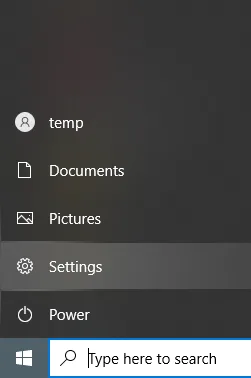
Windows Setting
- Click on Accounts:
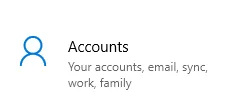
Windows Accounts
- If "Your info" does not say Administrator, you can skip these steps and just proceed to the User Account Setting section:
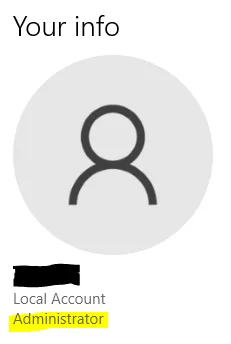
Windows Your info
-
Before you change your Account Type from Administrator you need to create another Administrator account.
-
In the left menu, click on Family & other users:
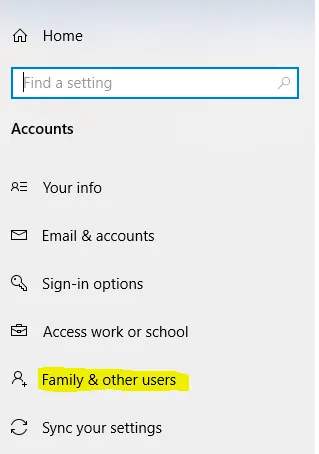
Widnows Family & other users
- Click on Add someone else to this PC:
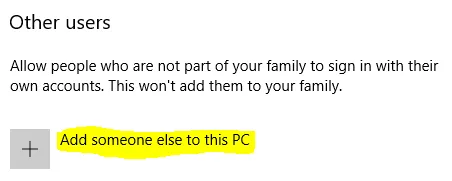
Windows Other users
-
I am creating a local account here. You can add or create a Microsoft account if you want to, but ensure its has tightened security with two-factor authentication enforced (i.e. not just a username and password, but a prompt for a security code via SMS or an Authenticator application on your phone).
-
Click on I don't have the person's sign-in information:
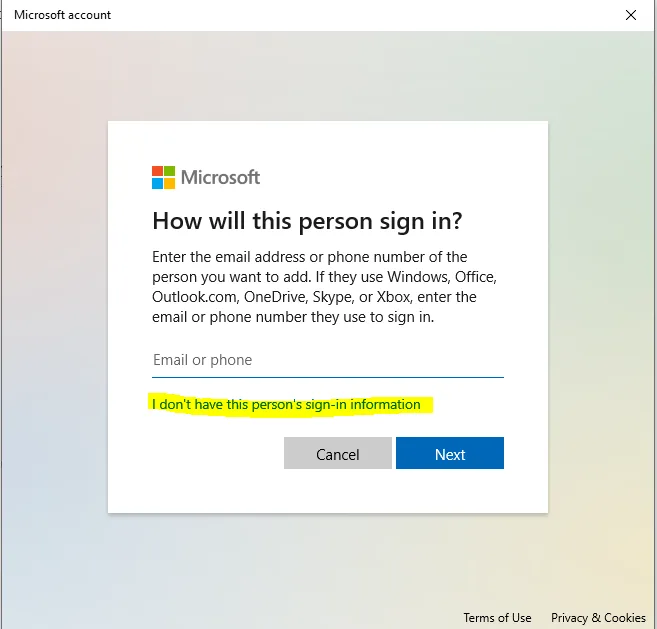
Windows Add User Person Sign-In Information
- On the next screen, select Add a user without a Microsoft account:
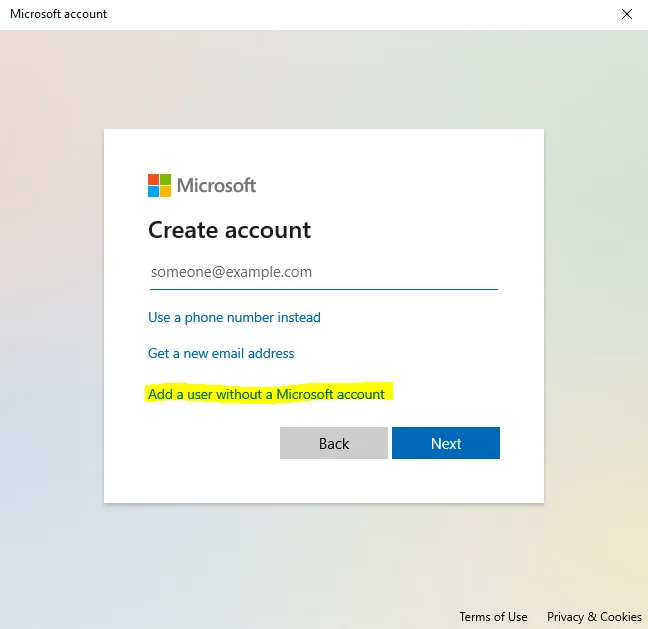
Windows Add User Person Create account
- Provide a username and strong password. Enter a password which you can remember.
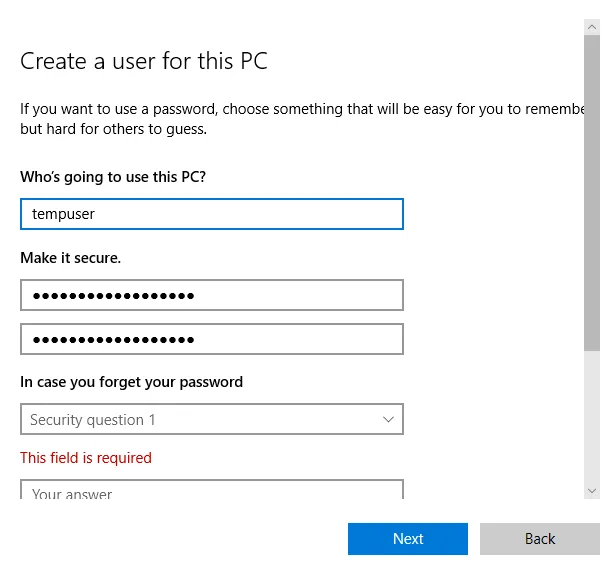
Windows Create a user for this PC
A local account here does not have two factor authentication enforced but only you should be knowing its password.
The Security Questions and Answers are required here. For these too include answers which cannot be easily guessed.
-
If you see a prompt from User OOBE Created Elevated Object Server asking you to confirm these changes, click on Yes.
-
Your new user should now be created, but the account type is Standard by default. Click on Change account type:
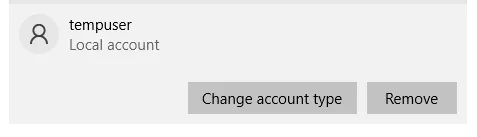
Windows Local Account
- From the Account Type drop-down select Administrator and click OK:
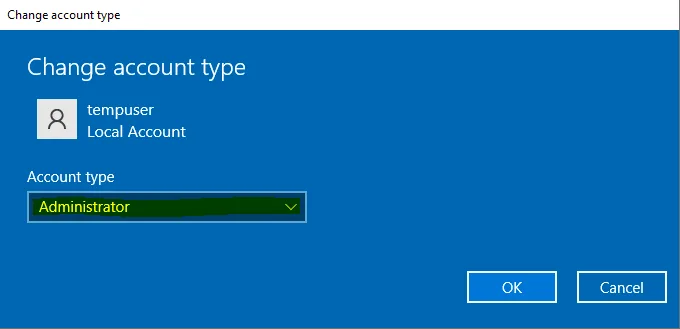
Windows Change Account Type
- Your new local account should now be an Administrator:
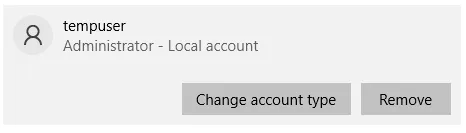
Windows Local Administrator Account
-
Now similarly click on Change account type for your existing account and but this type change its type from Administrator to Standard.
-
Click OK. You are done. It may be a good idea to sign out and sign back in for these changes to take effect.
Going forward, use this second local Administrator account to install new software, run update checks, or make any system changes.
Alternatively, you can temporarily give your existing account Administrator rights using this local account (i.e. login as the local Administrator account) and when done, revert it back to a Standard user.
Change User Account Control Settings
It's a good idea to always be prompted for any system changes being done by Windows and/or any applications installed on your PC.
To set this, go back to the Windows Settings page and in the search bar type Change User and select Change User Account Control Settings:
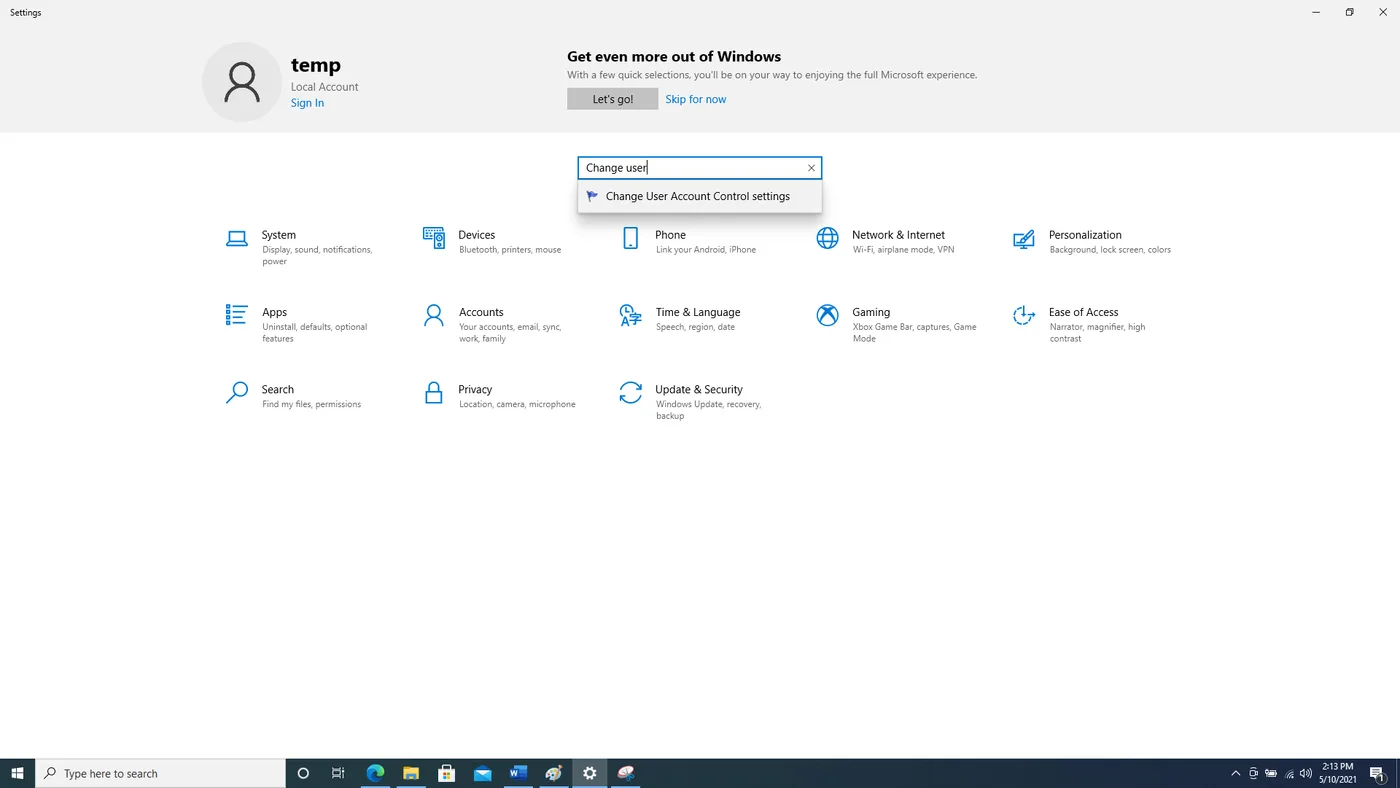
Windows Settings Search
Drag the lever to the top to Always:
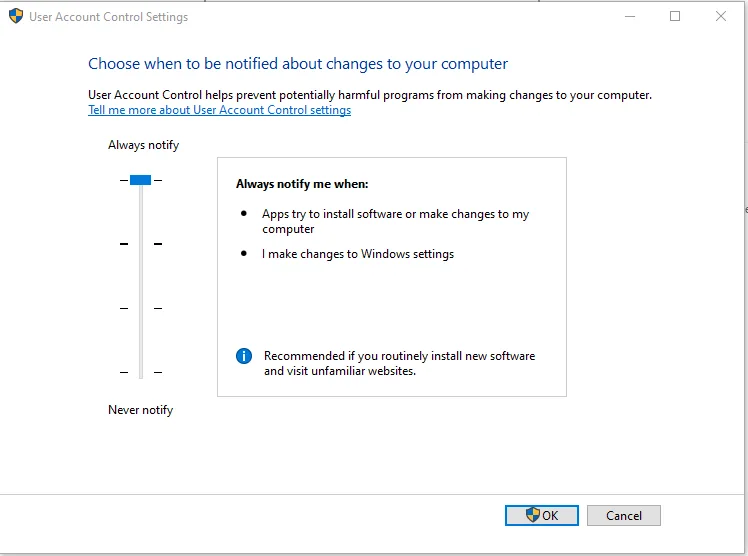
Windows User Account Control Settings
Click OK.
Conclusion
I have not used Macs ever, but the principle should still hold true there too. Likewise for Linux based systems, do not use the root account for your daily work and/or personal. Always ensure all sudo commands are password prompted.
Stay Cybersafe My Friends.