
In my previous post I made a case for using a smart SIEM solution with the ability to orchestrate and automate your responses to security events, alerts, or incidents. We discussed how Azure Sentinel meets the cyber security challenges of the current times.
In this post we will walk through a use case of auto-reverting unauthorized changes to your IT environment, namely Active Directory (AD) group changes done outside your Identity Management (IdM) system’s request approval workflow process.
Many organizations have Identity Management (IdM) and/or Privileged Access Management (PAM) implementations in place. While some of these products do support native change detection, not all of these provide complete coverage. Besides, based on my two decades of experience in this field, there are always changes made outside the realm of these products. Call it Shadow IT, out of band, or “I don’t have the time or the patience to follow this new secure process my company has put in place” or the ever present “I like it doing the old way, my way” mentality.
Worse still there are still a lot of companies who neither have IdM nor PAM solutions in place. In all these scenarios, how do you then detect any and all unauthorized changes to your IT environment? Say for example, a highly privileged Active Directory (AD) group, like Domain Admins.
Let’s consider a typical enterprise which has an identity management solution in place. For our example we will pick SailPoint IdentityIQ (IIQ). Ideally all changes to all AD groups in the enterprise should follow the request approval workflow as provided by the SailPoint IIQ product. But in our case, there are some senior engineers or administrators who still prefer to not follow the process. This can pose a security risk, especially when one of their accounts gets compromised allowing for lateral movement of privilege escalation (ransomwares love this). How do you identify these changes? How do you hunt through the tons of logs and audit data and ensure only unauthorized changes are identified and responded to? You definitely want to identify changes to privileged AD groups, but not be bothered when they follow the approval workflow as implemented in your organization.
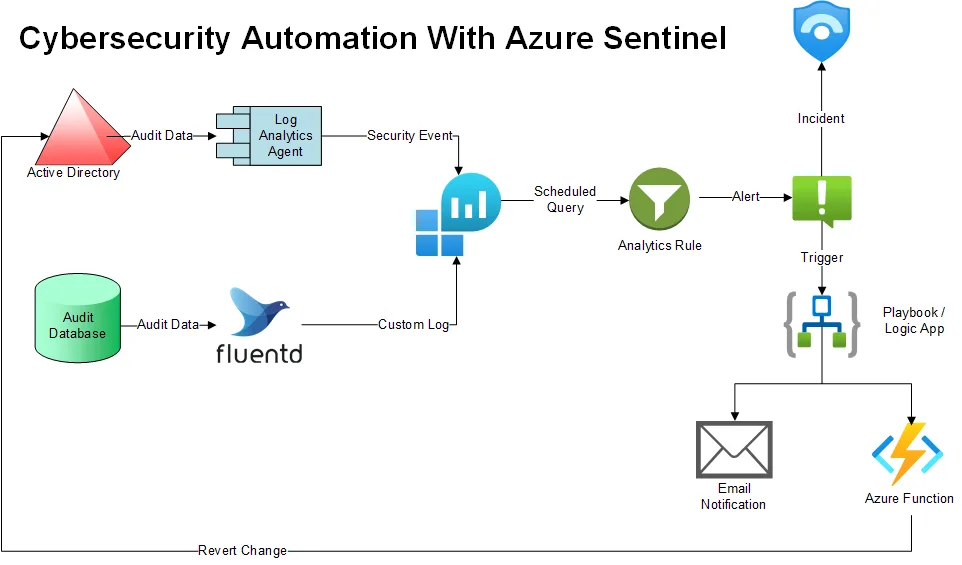
You need a solution that can collect data from various sources and provide you the ability to correlate it. In our example, these sources would be SailPoint IIQ and Active Directory. You could replace this with any IdM solution and any privileged access store (databases, directory services etc.)
Source 1: Active Directory
Every organization should turn on Active Directory auditing. If you have not and need help, please feel free to reach out. Once you have AD auditing in place, using Log Analytics agents to capture Security Event data from your domain controllers and sending it to Sentinel Log Analytics workspace is a pretty straight forward task. More on this here: https://docs.microsoft.com/en-us/azure/sentinel/connect-windows-security-events.
Source 2: SailPoint IdentityIQ (or any IdM solution’s database)
Most identity management solutions including SailPoint IIQ write their audit data to databases. Once again, your IdM product configuration should include auditing changes to user’s roles, entitlements, and access. While there isn’t a database connector for Azure Sentinel, you can use any log forwarder like Logstash or Fluentd to ship your audit data to Sentinel. This provides added functionality to filter what and how much data you are sending through. Certainly, helps you keep your cost down.
For our example, we will use Fluentd which is pretty lightweight. There’s a Fluent plugin for Azure Log Analytics we will be using here.
Our basic Fluent configuration would look like (our database is MySQL here):
<source>
 type mysql_appender

 # Set connection settings for replicate source.
 host localhost
 username abcdefg
 password **
 database myiiqdb

 # Set replicate query configuration.
 query SELECT * from spt_audit_event
 primary_key created # specify incremental unique key (default: id)
 interval 1m # execute query interval (default: 1m)

 # Format output tag for each events.
 tag sailpoint

 limit 1000 # query limit
 last_id -1 # specify primary_key start
</source>

# converting sourced epoch time to ISO 8601 time and adding it the data
<filter sailpoint>
 @type record_transformer
 enable_ruby
 <record>
 timestamp ${Time.at(record["created"]/1000.to_i).iso8601}
 </record>
</filter>
# azure log analytics plugin
<match sailpoint>
 @type azure-loganalytics
 customer_id *
 shared_key **
 log_type SailPointIIQ
 time_generated_field timestamp
</match>
Correlate, Detect and Identify
By now you are pushing data from AD and SailPoint IIQ into the Sentinel Log Analytics workspace. Once data is in you need to correlate the two sources. For that you would need to write a KQL (Kusto Query Language) query:
SecurityEvent | where Activity contains "A member was added to a security-enabled global group." |
extend MemberAndGroup = strcat(MemberName, " : ", TargetUserName) |
join kind=leftanti (SailPointIIQ_CL | where TimeGenerated > ago(5min) | where action_s == "EntitlementAdd" |
project MemberAndGroup = strcat(account_name_s, " : ", substring(substring(attribute_value_s, 0, indexof(attribute_value_s, ",")), 4)))
on MemberAndGroup
Let’s see what we are doing here. We are filtering Security Events specific to a user being added to an AD group. You could add additional filters to target a specific user/service account via the MemberName field, or a specific AD group, via the TargetUserName field.
Once we have that data, we are concatenating the user and group information into a new field named MemberAndGroup.
Then from the SailPointIIQ_CL custom log we are gathering all events generated in the past 5 minutes as there’s usually a slight lag from when the “add user to group” command is executed on the IdM product side, here SailPoint IIQ, and when the user gets actually added to the group in AD. This action is represented by the EntitlementAdd value in the action_s audit data field.
You then similarly, concatenate the member and group information into the MemberAndGroup field.
The final step is doing a left anti join, to pick only those entries in the SecurityEvent data which do not have a corresponding EntitlementAdd action within the previous 5 minutes on the SailPoint IIQ side.
This of course expects the time to be in the same time zone for both the sources. If that isn’t the case, just add / subtract the time offset as needed. You can follow the same process to pick and chose specific events you want to identify from different sources.
Create Sentinel Analytics Rule
Once you are satisfied with the query results we create a Sentinel Analytics rule. For our scenario, we will have this run every 5 minutes as a Scheduled Query to capture the data from the past 10 mins setting the threshold to more than 0 query results. You may want to group these results so multiple alerts are not generated.
We picked the data from the past 10 minutes to compensate for the lag between the action being initiated in the IdM product and then event being captured in AD.
You also would want an Incident created. You should group alerts so as to not generate multiple incidents. This is highly recommended when you see a lot of noise and SHTF scenarios as each incident will need to be responded to and closed. If all alerts are pointing to the same incident, group them.
For our use case that is highly unlikely, unless a privileged AD account is compromised, and malware starts adding or removing users to group all over the place. Getting flooded with email alerts or SMS notifications will not be pleasant in those scenarios and may help retain your sanity.
Automate Response
While creating the Analytics rule, you have the option to automate your response. Here, Sentinel Playbooks come in handy. These are no-code/low code Logic Apps. For our use case, we ended up sending an email alert with the incident details and reverting the change via an Azure Function App (PowerShell to the rescue; one domain controller was in the Azure Cloud).
A few other examples of automated response would be:
Creating a ServiceNow Ticket
Initiating a Teams meeting
Locking or disabling the user account
Calling your system administrators at 2AM etc.
The possibilities here are endless with the vast ever increasing list of connectors available for Logic Apps: https://docs.microsoft.com/en-us/connectors/connector-reference/
Conclusion
And that’s the beauty of this solution. You can not only correlate data from a wide array of sources, you can marry that with threat intelligence data and other security solutions, and automate how you respond to it, all the while utilizing the power of the cloud and making the system smarter by harnessing it’s Artificial Intelligence / Machine Learning capabilities.
If you want to close the loop with automated cybersecurity, feel free to contact me here.
Comments to this post are welcome.
#siem #azure #sentinel #automation #cybersecurityautomation #soar #loganalytics